For the Sales Dashboard
Open Business Reports
In Seller Central, go to Reports → Business Reports from the top menu.
Choose "Detail Page Sales and Traffic by Child Item"
On the left-hand menu, look under "By ASIN" and select Detail Page Sales and Traffic by Child Item. This gives both parent and child ASIN data in one file, which the Dashboard needs.
Set your date range and download
Pick the date range you want (e.g. last 30 days, or a specific month), then click Download to get the CSV. Do this once for your current period, and again for an earlier period if you want to see growth/decline comparisons.
Upload it
Go to the Dashboard and drop the CSV into the "Current Period" box (and the older file into "Previous Period" if you have one).
For Keyword Intelligence
Open Brand Analytics
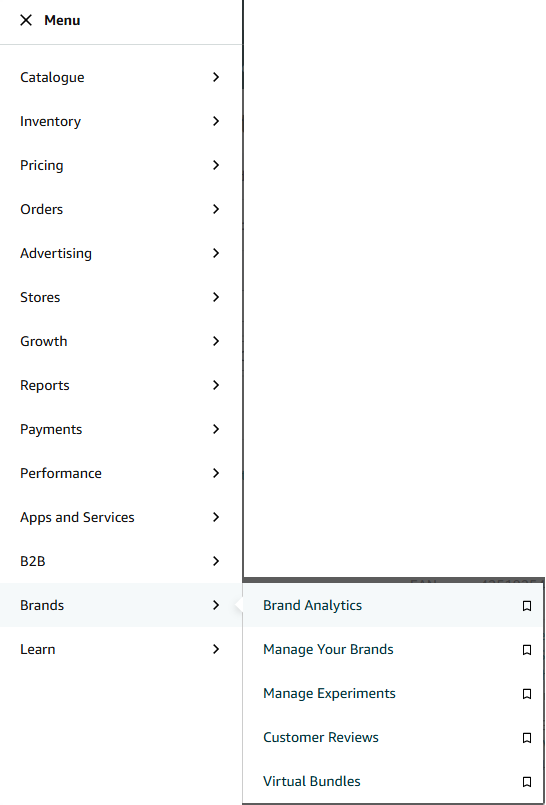
Click the ☰ Menu in Seller Central, then go to Brands → Brand Analytics.
Pick your report under Search Analytics
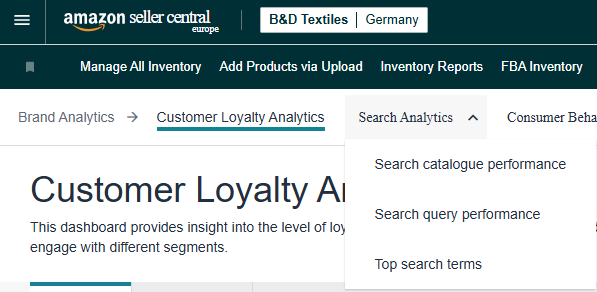
At the top of the Brand Analytics page, open the Search Analytics dropdown. For keyword performance, choose Search Query Performance. For competitor data on each keyword, choose Top Search Terms.
Set the period and download
Choose weekly, monthly, or quarterly, set the date range, and download the CSV. You can download more than one period if you want quarter-over-quarter comparison.
Upload it
Go to the Keywords page and drop the Search Query Performance file and/or the Top Search Terms file into their matching boxes.
Tips
- You don't need every report — the Dashboard works fine with just the Business Report, and Keywords works with just one of the two Brand Analytics reports.
- Leave the file unfiltered when exporting so all your ASINs or keywords are included.
- Nothing you upload is sent anywhere — it's processed right in your browser. See our Terms & Conditions.